
Calven's no-show prompts free up desks that are likely to go unused, so others can book them. Calven asks people who haven't checked in whether they still need their desk, and cancels the bookings nobody confirms.
There are two kinds of no-show prompt, and you can use either or both:
- Day before no-show prompts: the afternoon before an office day, Calven asks people who missed their recent bookings to confirm tomorrow's desk. Unconfirmed bookings are cancelled at 5 PM.
- Same day no-show prompts: on the morning of an office day, Calven asks people who haven't checked in yet whether they still need today's desk. Unconfirmed bookings are cancelled at the time you choose.
No-show prompts require presence integrations to detect no-shows in your office, and work best alongside waitlist. Global administrators and real estate administrators can set them up for each office in Calven web.
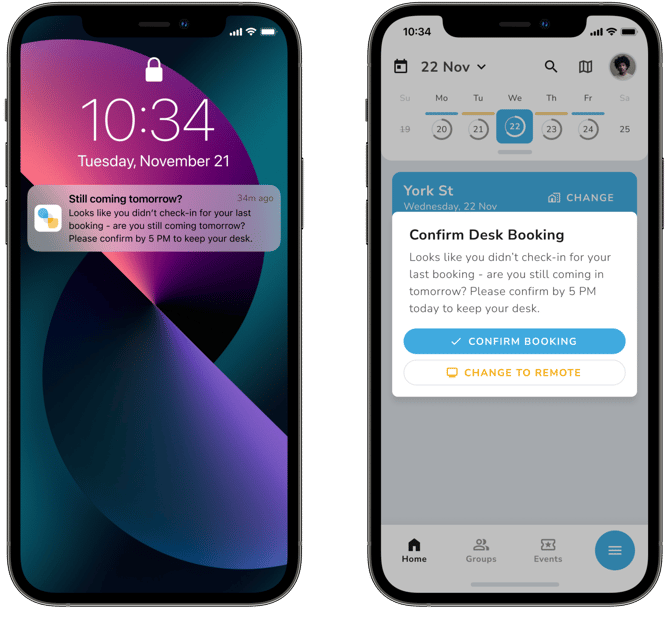
To avoid cancelling the bookings of people who plan to show up, we recommend letting your users know before you turn on no-show prompts, and reminding them to turn on Calven push notifications on their mobile devices. Learn more about notifications.
Why enable no-show prompts?
On average, we find more than 20% of desks that are booked in advance end up unused or forgotten about by the users who book them. This creates friction in the office when people who want a desk booking miss out, or can't tell whether a desk on the map is actually in use or booked accidentally by someone who's no longer coming in.
No-show prompts prevent wasted bookings, re-allocate unused desks to people who need them, and give a more accurate view on the floor plan of who's actually in the office.
- Day before no-show prompts only target people who've already missed recent bookings, so desks are freed up with enough notice for others to plan their day, without bothering people who usually show up.
- Same day no-show prompts catch plans that change on the day. Desks that would otherwise sit empty become available the same morning.
To get the most out of no-show prompts, turn on waitlist in booking settings for your office. After desk bookings are cancelled (by a no-show prompt or otherwise), the waitlist re-books them for users who didn't get a desk initially.
Turn on no-show prompts
- Sign in to Calven web.
- In the menu, under Administration, open Offices and select the office.
- Select the Automations tab.
- In the Presence Automations section, select Edit.
- Turn on Same day no-show prompts, Day before no-show prompts, or both, and choose the times described below.
- Select Save.
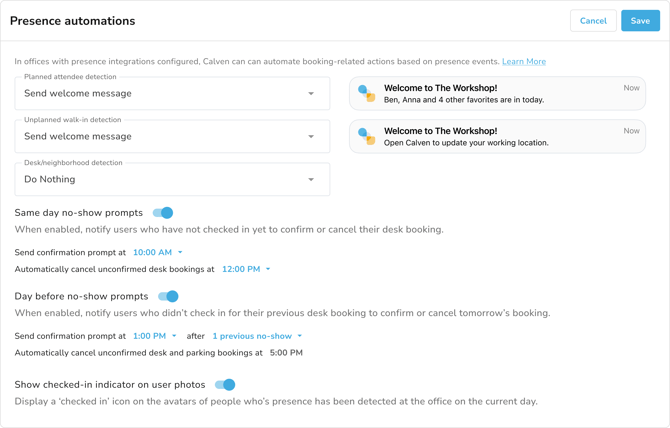
Both prompts run Monday to Friday, in the office's time zone.
How do same day no-show prompts work?
- At the time set for Send confirmation prompt at (9 AM, 10 AM, 11 AM or 12 PM; 9 AM by default), Calven asks everyone with a desk or neighborhood booking for today who hasn't checked in yet whether they still need it, via:
- Push notification
- Slack/Teams (if configured)
- From the prompt, users can confirm their office booking, or change to remote.
- At the time set in Automatically cancel unconfirmed bookings at (10 AM, 11 AM, 12 PM or 1 PM; 10 AM by default), Calven cancels bookings for people who haven't checked in or confirmed.
- If someone's presence is detected before the cancellation time, they keep their desk without confirming.
- Same day cancellations only cancel the desk or neighborhood booking. Calven keeps the person's parking booking for the day, in case they're already on their way.
- Confirming today's desk also confirms any desk booking they have for the next work day, so Calven won't send them a day before no-show prompt for it.
How do day before no-show prompts work?
- Under automations settings for your office, choose whether Calven prompts people after 1 previous no-show (recommended) or 2 previous no-shows.
- At the time set in Send confirmation prompt at (1 PM, 2 PM, 3 PM or 4 PM; 3 PM by default) on the day before an office day, Calven asks people who no-showed to confirm tomorrow's booking, via:
- Push notification
- Slack (if configured)
- From the prompt, users can confirm their office booking, or change to remote for the upcoming day.
- At 5 PM, Calven cancels desk bookings that haven't been confirmed, along with the person's parking booking for that day.
🔓 Global Administrators can opt-out individual users from no-show prompts by editing the booking settings (work information) on the user's profile in Calven Web. This action is limited to Global Administrators only.
Note: if someone no-showed on their previous office day and is checked in today, they'll still get a no-show prompt for tomorrow's booking.
Can Calven cancel bookings without prompting first?
Yes. For either prompt, set Send confirmation prompt at to Never and Calven cancels unconfirmed bookings at the cancellation time without asking first.
We do not recommend this. People who plan to come in won't get a chance to keep their desk, and will find their booking cancelled.
What happens if I don't respond to a no-show prompt?
- Day before: if you don't respond by 5 PM local time, your desk booking for tomorrow, and any parking booking for that day, is cancelled so others can book them. You'll keep getting day before prompts until you stop booking desks or check in for a desk booking.
- Same day: if you haven't checked in or confirmed by the cancellation time your office has set, your desk booking for today is cancelled so others can book it.
Do I have to confirm all booking types?
No. Calven won't ask you to confirm a booking if:
- The booking is an office-level booking only (no specific desk or neighborhood booked)
- The booking was booked for you by an administrator
- The booking is at your assigned desk
- For day before prompts, tomorrow's booking was made today, or you confirmed today's booking from a same day prompt
- For same day prompts, today's booking was made by you today, or your presence has already been detected today
What counts as a no-show?
A no-show is when you are not checked in by presence detection at the office on a day where you had an auto-booked (booked by Calven) or manually booked (booked by you) desk.
Confirming a booking from a no-show prompt doesn't count as checking in. If you confirm and then don't come in, it still counts as a no-show.
What does not count as a no-show?
- Missing a desk booking that was made for you by an administrator
- Missing a desk booking at your assigned desk
- Missing an office-level booking (no specific desk or neighborhood booked)
How does Calven know if I no-show?
Calven relies on presence integrations in your office to see whether you're checked in on a given day. When your presence is detected via WiFi, badge or sensor data, you'll see a green tick on your profile in the Calven apps (if the checked-in indicator is turned on at your office). If you're at the office but don't appear as checked in, make sure presence is turned on in your booking settings, and check with an administrator if you still have questions.
Now that you've set up no-show prompts, learn more about presence-based booking and automations.
Have feedback on this feature or article? Let us know at support@calven.com.