
|
Type |
Description |
Example |
|---|---|---|
|
Day-before Reminder |
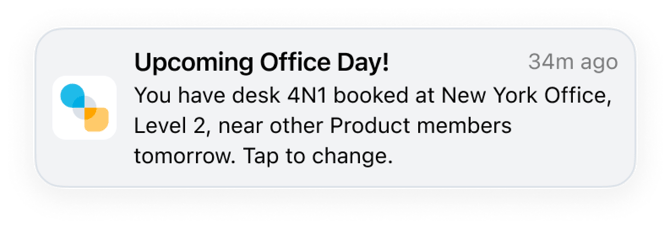
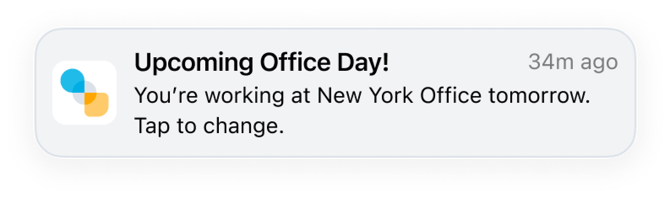
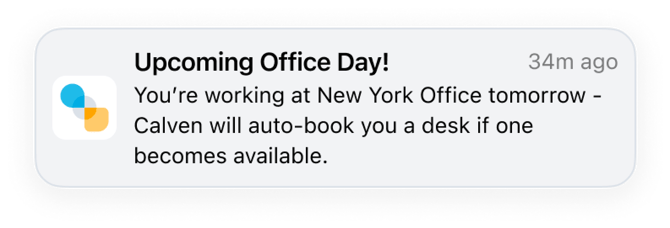
Calven will notify you on the day before you're planning to be in the office. Sent at the time configured by your office administrator. You'll receive a different version of this notification depending on whether you've got a desk booked, are on the waitlist, or are planning to attend the office without a desk booking. |
   |
|
Welcome message |
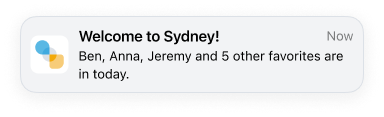
Calven will notify you when you check-in at the office and let you know if any of your favorite colleagues are in yet. |
 |
|
Calven will notify you the night before your assigned desk is set to be auto-released for others to book. This will only happen if auto-release assigned desks is enabled for your office. |
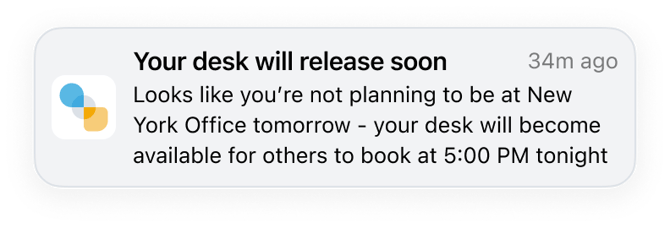 |
|
|
If you do not check-in for a booking, Calven will send you a no-show prompt the day before your next booking asking you to confirm or release it for others to use. |
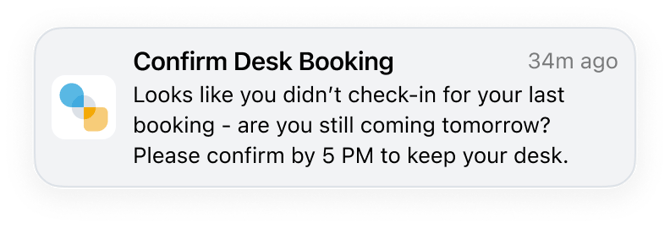 |
|
|
Admin booking notification |
Sent when an admin has booked a desk or changed your working location. |
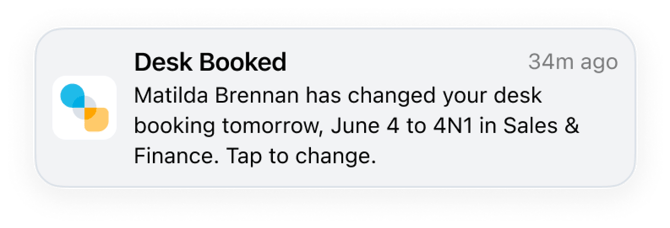 |
|
Cancellation notification |
Sent when an admin cancels a desk booking on behalf of a user. |
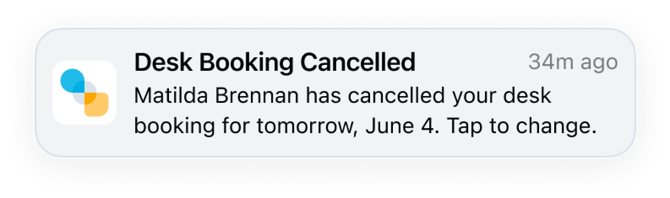 |
|
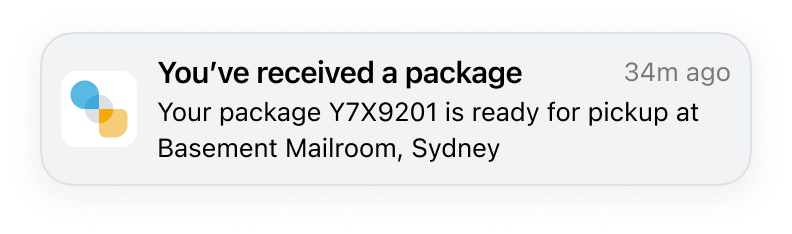
Package reminder |
Sent when a package is logged for you in mailroom. Calven will notify you when your package is initially logged - then you'll receive a reminder once per week (either on Monday if fully remote, or the first in-office day each week), until the package is marked as picked up.
|
 |
|
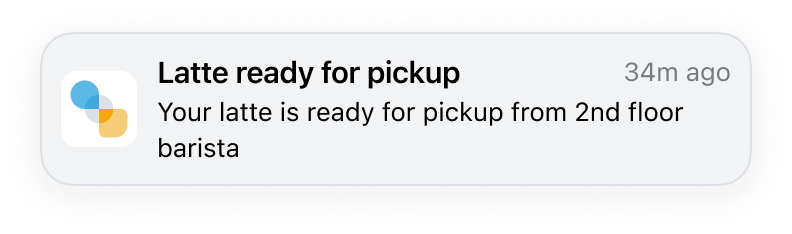
Catering order ready for pickup |
Sent when your order has been marked as complete by a catering vendor. |
 |
|
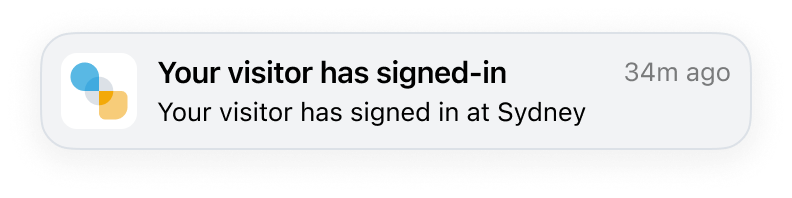
Visitor arrival |
Sent when a visitor you're hosting signs in at the office |
 |
Instructions for device settings
Users will need to ensure their mobile device settings allow for Calven notifications to be received.
iPhone
-
Open Settings
-
Select Notifications
-
Select Calven
-
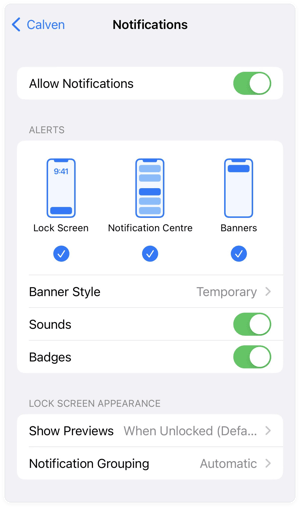
Select the following:
-
Allow Notifications → ON
-
Alerts for Lock Screen, Notification center, Banners → ON
-

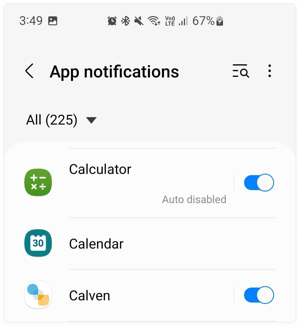
Android
-
Open Settings and scroll down to click on Notifications.
-
Click to view more apps and find Calven in the list
-
Ensure that the toggle is switched ON for Calven
.jpg&size=105447&width=1440&height=1577&alt=)
More Information
Contact your IT department / internal Calven Champion (or support@calven.com) for more information about Mobile Notifications.