
Table of contents
- Understand how desks are booked
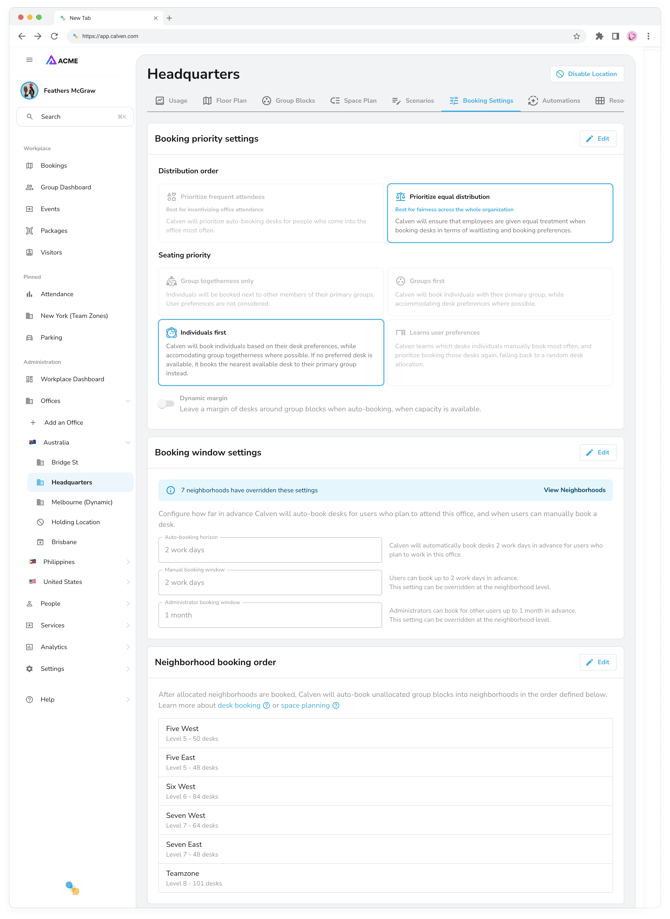
- Open your office's booking settings
- Choose who gets desks first and where they sit
- Set your booking windows
- Customize booking for a neighborhood
- Set your neighborhood booking order
- See why someone got a desk
Calven's booking settings let you decide exactly how desks get booked in your office: who Calven auto-books first, how it seats groups together, how far ahead people can book, and who can book each neighborhood. You can set them once for the whole office, then fine-tune individual neighborhoods.
You'll find booking settings in Calven web, on the Booking Settings tab for each office. If you're new to auto-booking, start with how desk booking works in Calven, and learn more about administrator roles.
Some older Calven offices still use Calven's legacy desk booking algorithm. These offices don't show Booking priority settings, only offer the Auto-booking horizon in whole weeks, and don't support Bookable by restrictions on neighborhoods. Learn more about the legacy booking algorithm.
How are desks booked in Calven?
Calven supports three ways of booking desks, and you can mix and match them across your office:
- Auto-booking: people set their working location on a recurring basis or for a specific day, and Calven auto-books them a desk ahead of time. How far ahead depends on your office's Auto-booking horizon.
- Manual booking: people open the floor map in the Calven mobile app or Calven web, select an available desk and book it for a given day.
- Presence-based booking: if your office has presence integrations, Calven can book desks automatically when people arrive, and keep a real-time view of who's sitting where. Learn more about presence-based booking and automations.
The settings below control how each of these works in your office.
Open your office's booking settings
- Sign in to Calven web.
- In the menu, under Administration, open Offices and select the office you want to change.
- Select the Booking Settings tab.
- In the section you want to change, select Edit.
- Make your changes, then select Save.
Note: archived offices can't be edited. Learn more about disabling and archiving an office.
Booking priority settings
Booking priority settings tell Calven who to auto-book first when desks are limited, and how to seat people once they're booked.
Distribution order
Choose who Calven auto-books first:
- Prioritize frequent attendees: best for encouraging office attendance. Calven prioritizes people who've come into the office most often over the last 30 days.
- Prioritize equal distribution (default): best for fairness across your whole organization. Calven shares desks out equitably, taking into account who received bookings first in the past, who was booked in a secondary neighborhood instead of their group's first allocated neighborhood, and who ended up on the waitlist.

Seating priority
Choose how Calven balances seating groups together against each person's desk preferences:
- Group togetherness only (default, previously called team togetherness): Calven books people next to other members of their primary group. Individual desk preferences aren't considered.
- Groups first: Calven books people with their primary group, while accommodating desk preferences where possible.
- Individuals first: Calven books people based on their desk preferences, while keeping groups together where possible. If no preferred desk is available, Calven books the nearest available desk to their primary group. Group members may sit slightly further apart than under Groups first.
- Learns user preferences (previously called individual favorite desks): Calven learns which desks each person manually books most often and prioritizes booking those desks again. If none are available, Calven books a random available desk.
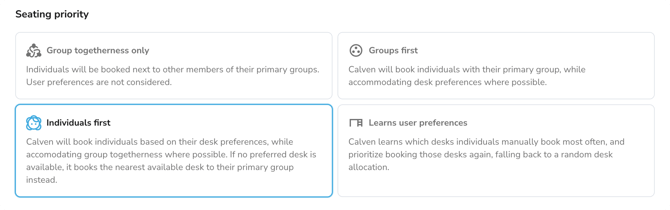
You can choose a different seating priority for individual neighborhoods. See customize booking for a neighborhood.
Dynamic margin
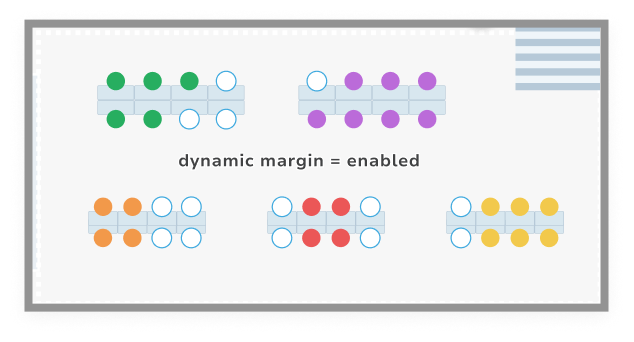
Turn on Dynamic margin to have Calven leave a margin of free desks around group blocks when it auto-books, so late planners can still book near their team. Calven only leaves this margin when there's spare capacity in the office:
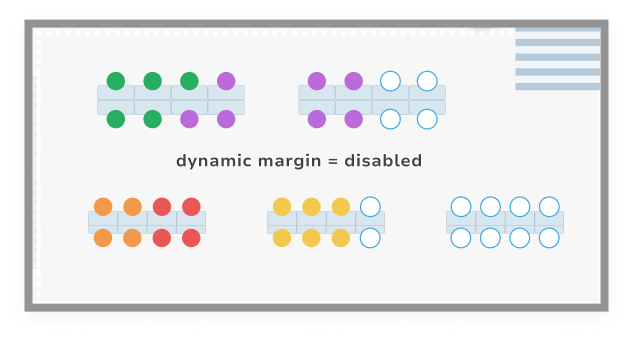
With Dynamic margin turned off, Calven places groups directly next to each other to make the most of your space:
Note: Dynamic margin only appears when your seating priority is Group togetherness only, Groups first or Individuals first.
Booking window settings
Booking windows control how far in advance Calven auto-books desks, and how far ahead people can book desks themselves. Windows are counted in work days.
- Auto-booking horizon: how far in advance Calven auto-books desks for people who plan to work in this office. Choose from 1 work day up to 3 weeks, or Disabled to turn off auto-booking for the office.
- Manual booking window: how far in advance people can book desks themselves on the floor map. Choose Same day to only allow bookings for today, a window of up to 1 year, or Disabled to stop people booking desks manually.
- Administrator booking window: how far in advance booking administrators can book desks for other people. The same options apply.
Each window also has an Organization default option, which uses your organization-wide setting. The text next to each field tells you exactly what the current choice means, for example Users can book up to 2 weeks in advance.
Note: you can override the Manual booking window and Administrator booking window for individual neighborhoods, and turn off auto-booking for a neighborhood. When any neighborhoods have their own settings, Calven shows a summary above the section so you can see what's been overridden.
Customize booking for a neighborhood
Neighborhoods can work differently from the rest of your office. For example, you might auto-book team neighborhoods, keep a quiet zone for manual booking only, and leave a drop-in area to presence-based booking.
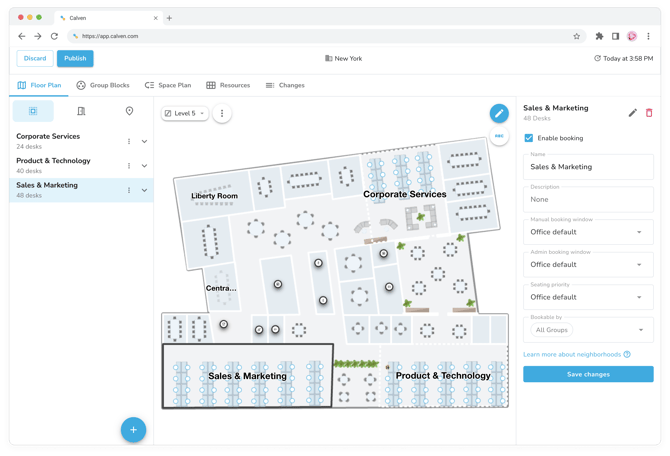
When you add groups to Bookable by, anyone outside those groups can no longer book desks in that neighborhood, either manually or through auto-booking. Administrators can still book anyone into the neighborhood, and people with an assigned desk there can still use it.
Change a neighborhood's settings
- Open the office in Calven web and select the Floor Plan tab.
- Select the neighborhood in the sidebar.
- Change the settings described below.
- Select Save.
Who can book this neighborhood?
Use Bookable by to choose which groups can book desks in the neighborhood. Leave it set to All groups to let everyone book.
- Manual booking: people who are members of a Bookable by group can book desks in the neighborhood.
- Auto-booking: Calven only auto-books people into the neighborhood if they're a primary member of, or sitting with, a Bookable by group.
How far ahead can people book this neighborhood?
Under Booking windows, each field starts on Location default, which uses the office's setting. Change them to give this neighborhood its own rules:
- Manual booking: how far in advance people can book desks in this neighborhood on the floor map.
- Admin booking: how far in advance administrators can book desks in this neighborhood for other people.
- Auto-booking: keep the office's auto-booking horizon, or choose Disabled so Calven never auto-books desks in this neighborhood.
Can a neighborhood be presence-only?
Yes. Set Manual booking, Admin booking and Auto-booking all to Disabled. Calven will show Desks in this zone will only be booked through automations, and desks there will only be booked by your presence automations.
How should Calven seat people in this neighborhood?
Use Auto-booking preference to give the neighborhood its own seating priority. Choose Location default to use the office's setting, or pick Group togetherness only, Groups first, Individuals first or Learns user preferences. Each works the same way as the office-wide seating priority.
Note: Auto-booking preference is hidden when auto-booking is disabled for the neighborhood.
Neighborhood booking order
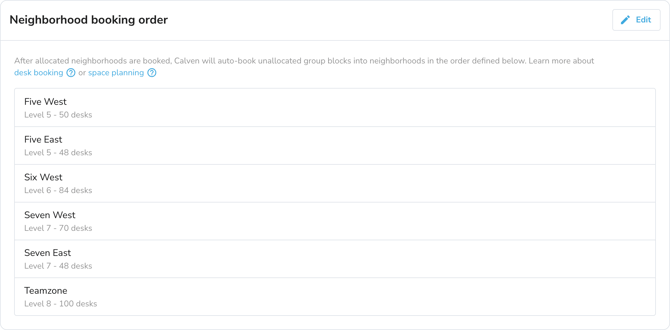
Once Calven has booked groups into the neighborhoods they're allocated to, it auto-books any unallocated group blocks into neighborhoods in the order you set in the Neighborhood booking order table. Put the neighborhoods you want filled first at the top.
- On the Booking Settings tab, select Edit in the Neighborhood booking order section.
- Select Add neighborhood to add a neighborhood to the table.
- Drag rows into the order you want them filled. You can also use a row's actions to Move neighborhood to top of booking order, Move neighborhood to bottom of booking order or Remove neighborhood from booking order.
- Select Save.
Learn more about space planning and allocating groups to neighborhoods.
How can I see why someone got a certain desk?
Calven explains its auto-booking decisions, so you can check your settings are working the way you expect:
- Administrators: the Reason column in the desk booking activity log shows why each desk was auto-booked, including the neighborhood's seating priority and any preferred amenities or people Calven matched. Learn more about the activity log.
- Users: everyone can select Why did I get this desk? on their desk booking pass in Calven web to see how their desk was chosen.
Now that your booking settings are in place, learn more about presence-based booking and automations.
Have feedback on this feature or article? Let us know at support@calven.com.