
About Administrator roles
Role-based access control enables you to provide the right level of Calven administrator access to the right team members. This article outlines the details of each role and its permissions.
How administrator roles work
User roles fall into three main categories:
-
Employees that have access to a limited set of features that a typical employee would need to use Calven
-
Global Administrators that have access to everything in Calven, and can grant and revoke administration roles from other users
-
Functional Administrators with limited administration access based on their roles
Employees can access Calven via the mobile app and web (https://app.calven.com), and also utilise the Outlook Add-in (if enabled for your organization).
All Administrators can perform administrator actions via Calven web (https://app.calven.com).
The roles have the following permissions:
Global Administrator
-
Assign admin roles to other users
-
View people page and edit user profiles
-
View groups page
-
Create new groups and assign membership
-
View and create work policies
-
All of the functions below
Access Badge Admin
-
View and manage Access Control passes for all users (note: this relates to office environments where the security access control system and passes is integrated with Calven)
Analytics Admin
-
View analytics for all data - including real estate, groups and catering
Bookings Admin
-
Create and edit desk and parking bookings on behalf of all users
Events Admin
-
Can view an edit all events, including private events
-
Can view allergies and dietary restrictions
Integrations Admin
-
Create and configure integrations such as meeting room calendars
Kitchen Admin
-
Create and edit food and beverage suppliers
-
Edit menus and food items
-
View food and beverage analytics
Locker Admin
- Configure and manage integrated lockers
Mailroom Admin
- Log and manage mailroom packages for other users
Real Estate Admin
-
Create new offices
-
Edit floorplans
- Create and edit parking spaces
Service Request Admin
-
Create and edit service request types and configuration, including assignment of recipients to manage service requests
Visitor Admin
-
Create and edit visitor types and configuration
-
Pre-register visitors in Calven web
- View visitor log
Tip: Team Leaders can also be designated to a Group Admin role, allowing them to manage the working location on behalf of their team members in Calven web. Learn more about the Group Dashboard and Group Admin role.
Setting administrator roles
A Global Administrator is able to set user’s administrator roles by going to the People page in Calven web and selecting the users they want to address, then clicking Actions → Assign role to x user(s).
The below dialog will open, and the roles for those users can be selected. When a user is assigned the new role(s), the changes will be reflected instantly.
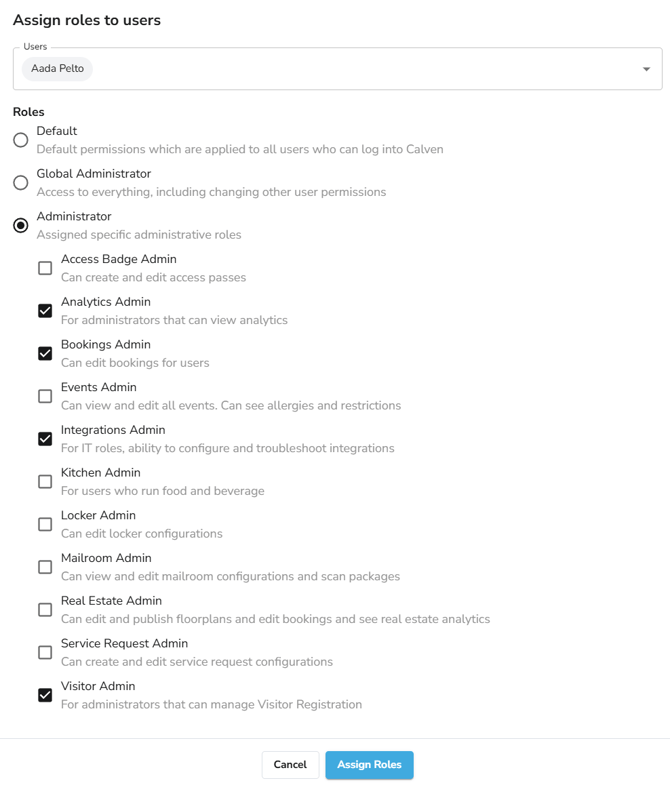
If you want to remove a user’s administrator privileges then you can set their role to Default.
Reviewing administrator access
Follow these steps to review the list of users with administrator access:
-
Navigate to the People page in Calven Web
-
Use the ‘All roles’ filter and select the administrator role(s) to search against.