
The Workplace Dashboard contains widgets that administrators can use to control the operations of their office. The widgets are updated in near real time so that the information is always accurate.
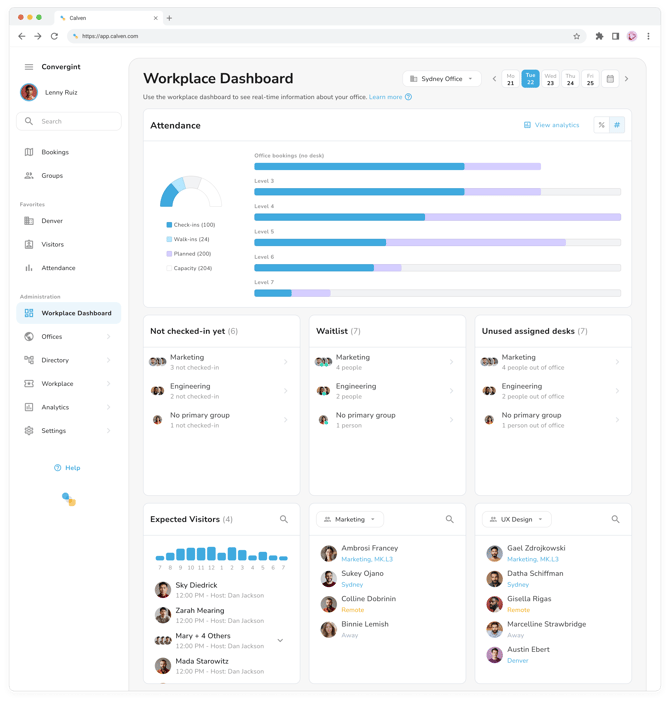
You can navigate to it via the sidebar in Calven web: https://app.calven.com/admin/dashboard
Permissions
The Calven Workplace Dashboard is available to the following administrator roles:
-
Global admin
-
Real estate administrator
-
Booking administrator
- Visitor administrator (limited view)
The dashboard will show information about the selected office on the selected day. The office and day are selected at the top of the screen, and all widgets will update with information for that office & day.
Widgets
There are currently 7 available widgets. The Global administrator can see all widgets, other roles that can see the widgets are described below.
1. Attendance widget
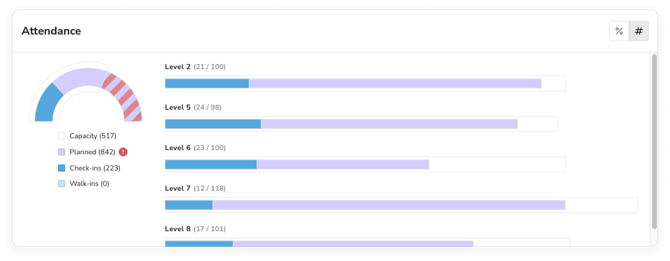
The attendance widget is available to Real Estate admin and Booking admin.
Office metrics
The attendance widget shows the following whole-office metrics:
-
Capacity - how many desks are available in the office
- Planned - how many users plan to be in the office that day based on their working location, but have not (yet) been in the office based on presence information. When looking at future days, presence information is not available yet so all users planning to be in the office will be in this state. Note that not all of these users may want a desk, some may have just set their working location to the office without a desk booking.
Note: the value for Planned matches the total number of users planned to be in office only within the auto booking horizon range for this location when viewing future dates. An enhancement will be released in the near future to improve the quality of this metric when viewing a day that extends beyond the auto booking horizon range.
- Check-ins - how many users that planned to be in the office did show up in the office based on the presence information available.
- Walk-ins - how many users didn't plan to be in the office that day based on their working location (meaning they were remote or away) but did show up in the office based on the presence information available.
When there are more users that plan to be in the office than are desks available, a red warning icon will appear to indicate that the planned count exceeds capacity.
Floor metrics
For each floor, 3 metrics are shown for desk/floor bookings. These metrics can be shown as % of capacity, or as a # count.
- Capacity - how many desks are available on the floor
- Check-ins - how many users that booked a desk on the floor did show up in the office based on the presence information available.
-
Planned - how many users have booked a desk on the floor that day, but have not (yet) been in the office based on presence information. When looking at future days, presence information is not available so all bookings will be in this state.
2. Unreleased assigned desks
The unreleased assigned desks widget is available to Real Estate admin and Booking admin.
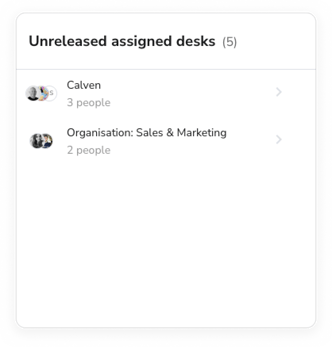
All users with assigned desks in the office and have not released those desks to be available to others - and are planning to be remote on the selected day - will be shown. The administrator can use this list to identify possible spaces for users if there is a shortage of desks.
3. Expected visitors
The expected visitors widget is available to Visitor administrator.
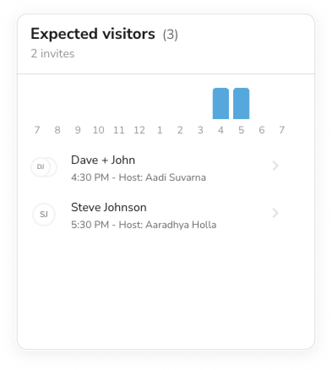
It shows when visitors will be attending the office based on visitor invites. It will also show the invited groups that are attending the office. Graphically it will show the number of attendees between the hours of 7AM and 7PM (in the office's timezone).
Administrators can open the visitor invite from there to make changes or copy the email addresses to contact the visitors.
4. Not checked-in yet
The not checked-in yet widget is available to Real Estate admin and Booking admin.
On the current day, this widget will be titled not checked-in yet. With a past day selected, the title will change to no-shows, to indicate that these are users who did not check-in for their desk bookings:
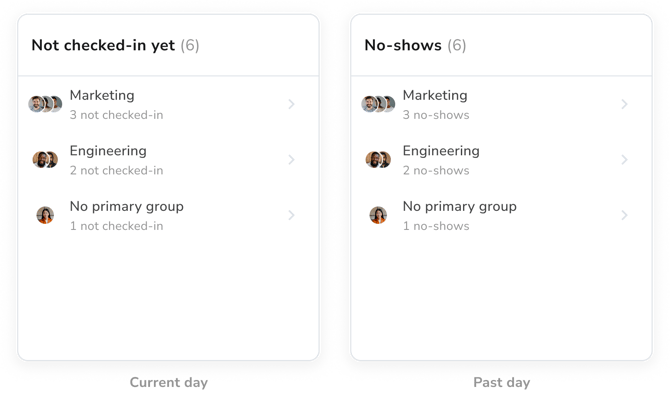
The 'no-show' widget shows users who have desks booked in the office today but have not yet been detected in the office based on the presence information available. The users are organized by group.
The administrator can use this list to identify possible spaces for users if there is a shortage of desks.
5. Waitlist
The waitlist widget is available to Real Estate admin and Booking admin.
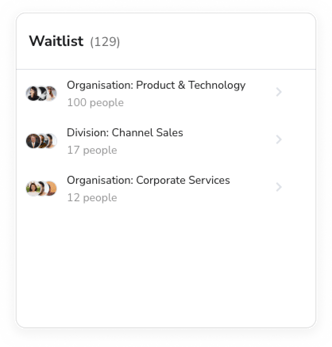
If the waitlist is enabled in the selected location, any users who are currently on the waitlist for desks will be shown. The administrator can click on a user to bring up a map view and reserve a desk for the user (if there are any desks available) directly from the widget.
6. Group view
The group widget is available to Real Estate admin and Booking admin.
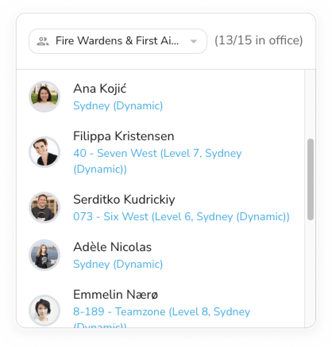
The group view widget gives a view on which members of a group are planning on attending the office that day. This allows administrators to have high visibility over particular groups - e.g. fire wardens, first aiders, or VIPs.