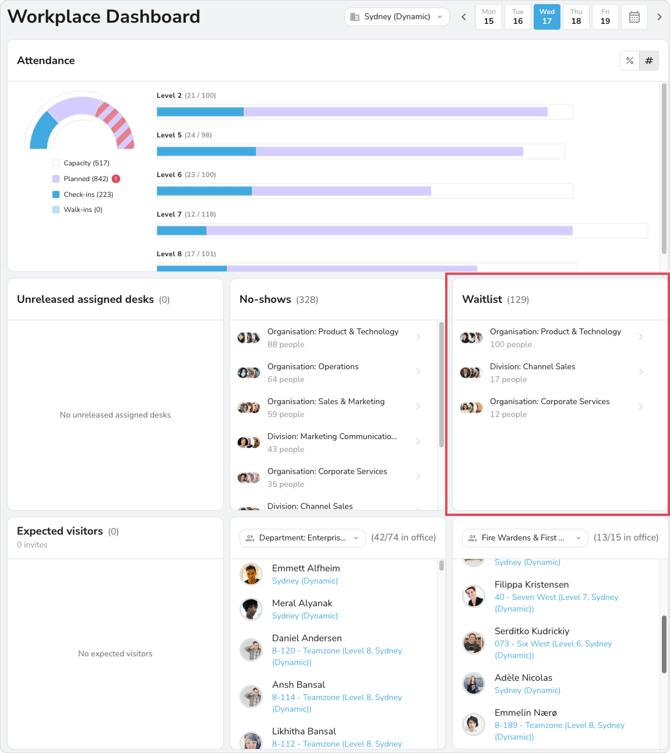
What is the waitlist?
In a high capacity office, there can be times when there's not enough desks for everyone who wants to come in. With waitlist turned on, people who don’t receive a desk booking when Calven initially auto-books desks will be added to the waitlist for the office. Then, Calven will periodically auto-book any desks that have become available for people on the waitlist.
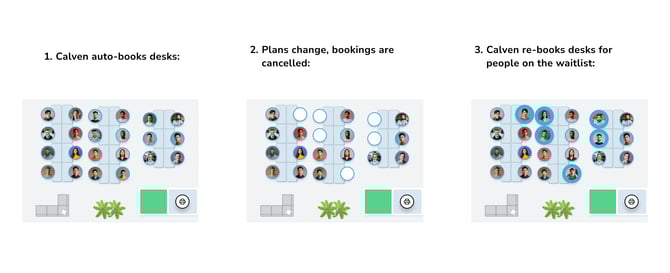
Waitlist works best when you have automations like auto-release assigned desks and prompt after no-shows enabled. These automations free up unused desk bookings, allowing them to be re-allocated by the waitlist.
How do I join the waitlist?
If ‘automatically book desk’ is turned on in your work settings, you’ll be added to the waitlist automatically anytime Calven is unable to auto-book you a desk.
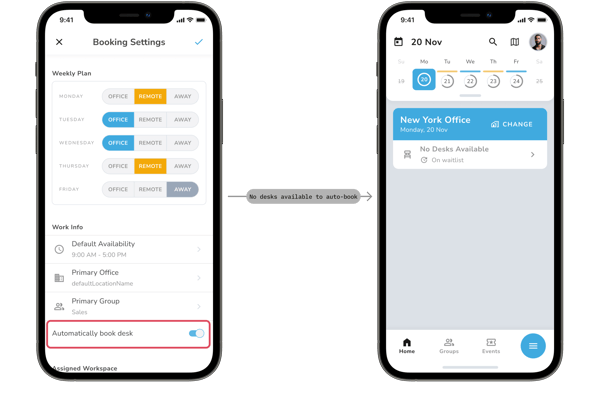
If you do not have a desk booking, and you press the + button in your office pass on a given day, you’ll be added to the waitlist automatically if there are no desks available.

If Calven is unable to book a desk for you, make sure to double check the floor plan - some desks can be manually booked but not auto-booked, depending on how your office is configured.
How will I know if I’m off the waitlist and have received a desk?
Calven will notify you via push notification / email...
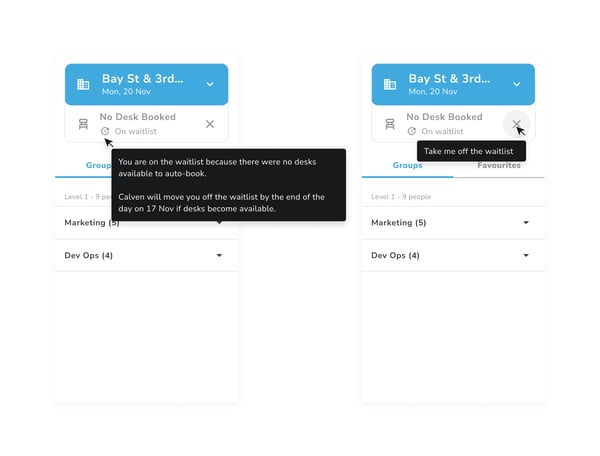
When you’re on the waitlist for an upcoming office day:
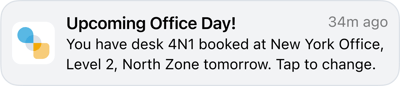
When you’ve been booked a desk from the waitlist:

What if I don’t want to be on the waitlist?
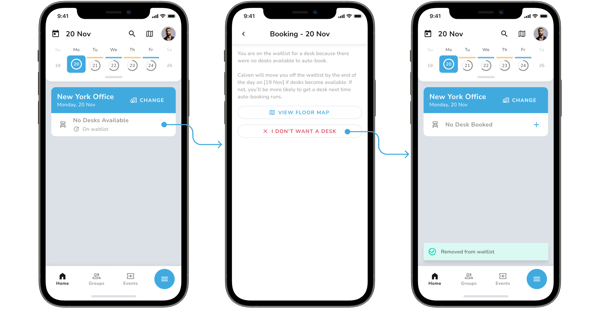
If you end up on the waitlist but don't want a desk, just tap on your waitlist desk pass, then tap the I don't want a desk button to opt out.
How often will the waitlist try and book me a desk?
Depending on the way your your office administrator has configured waitlist settings in your office, Calven will either try to rebook waitlisted users, once per day, or on a rolling basis throughout the day. If you're curious about your office's exact cadence, contact your office administrator.
Each time Calven tries to rebook waitlisted users, it will do so for all future days within the office’s auto-booking horizon.

As an admin, how do I manage the waitlist for my office?
Administrators with the following roles can use Calven web to toggle waitlist on/off:
-
Global Administrator
-
Real Estate Administrator
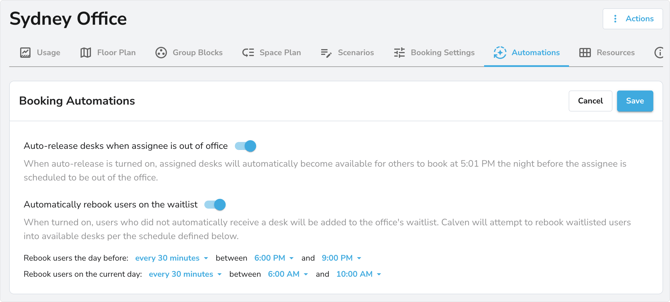
When automatically rebook users on the waitlist is enabled, administrators can choose the exact cadence at which Calven will try to book desks for waitlisted users.
Rebook users the day before refers to how often Calven will try to re-book users on the days leading up to a given office day.
Rebook users on the current day refers to how often Calven will try to book desks for users on the day-of.
Admins can view the waitlisted users for each day in the Workplace Dashboard.
As an admin, how do I know who's on the waitlist?
To see who's on the waitlist on a given day, you can use the waitlist module on Calven's workplace dashboard: