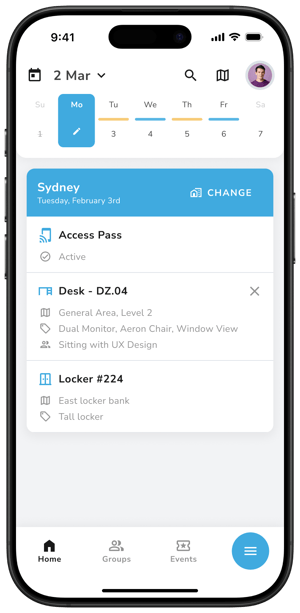
This article is for Calven's locker and storage feature. For information about Calven's Yellowbox lockers integration, click here.
When to use lockers vs storage units
Lockers are smaller units of storage that are grouped into locker banks. Each locker should be assigned to an individual user.
Storage units are larger units of storage that should be assigned to one or more groups, but cannot be assigned to specific people.
To create and edit lockers and storage units, you must be a global administrator or locker administrator. With these administrator roles, you can set up locker banks and storage units by going to the storage section in the Calven web app.
How to set up lockers in Calven
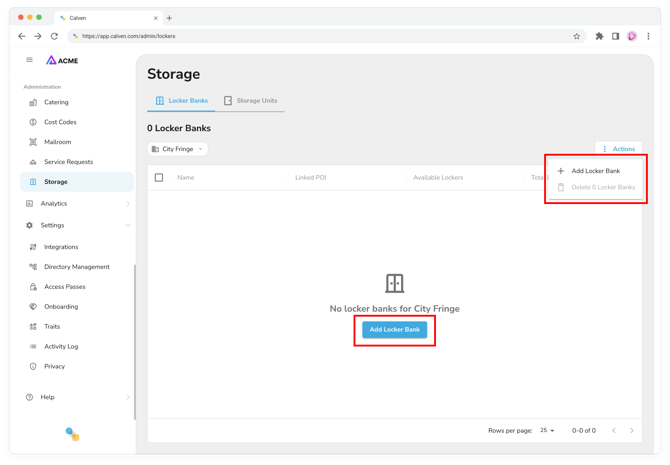
To create a new locker bank, use the add locker bank button within the locker banks tab:
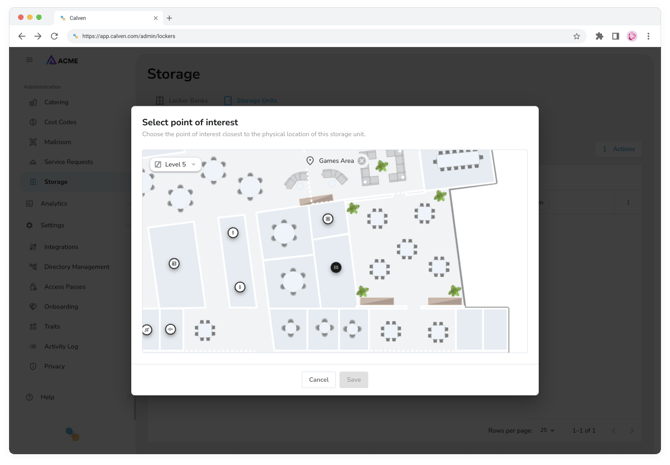
When creating a locker bank, you can choose to add a point of interest from your floor plan - this point of interest is used to help users navigate to their assigned storage:
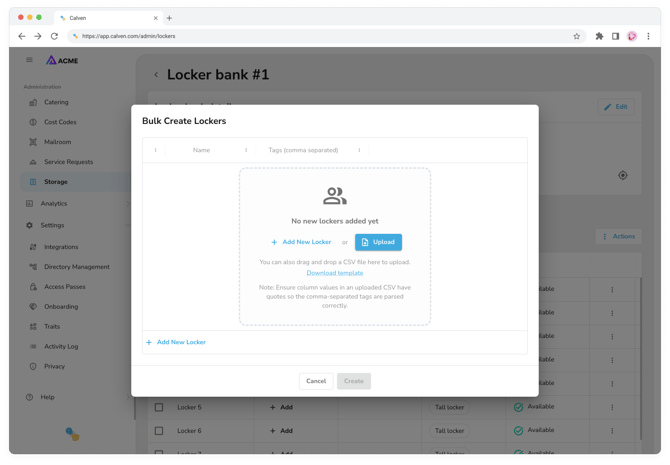
Once you've created a locker bank, you can add specific lockers into the bank, either one-by-one, or by using actions > bulk create:
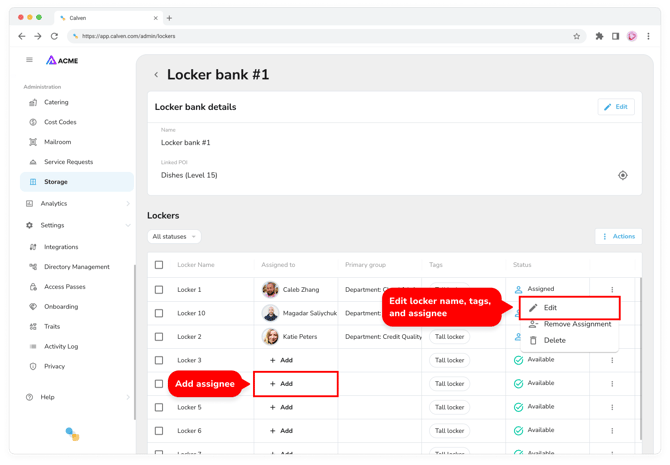
Once lockers have been created, you can assign each locker to an individual user by clicking the add button in the assigned to column:
How to set up storage units in Calven
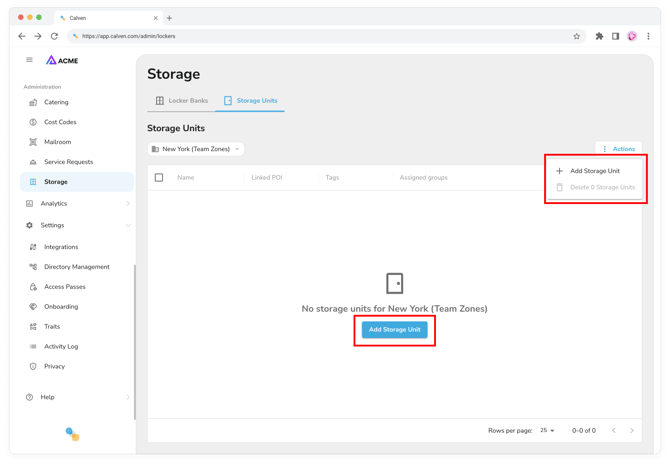
To create a new storage unit, use the add storage unit button within the storage units tab:
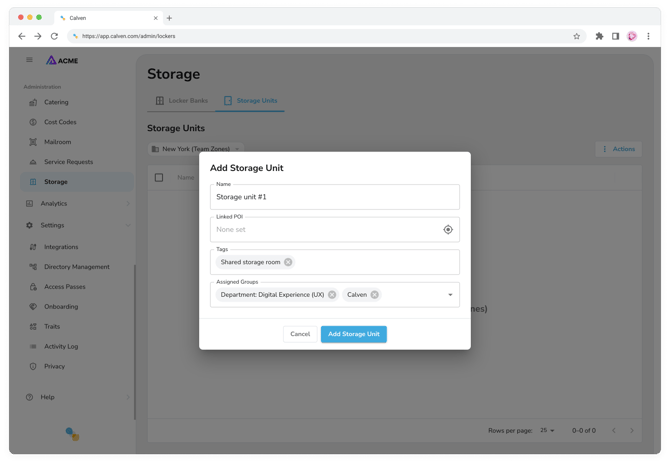
When creating a storage unit, you can configure it with a name, a linked point of interest to help assigned users find it on the map, any relevant tags, and any groups assigned to it:
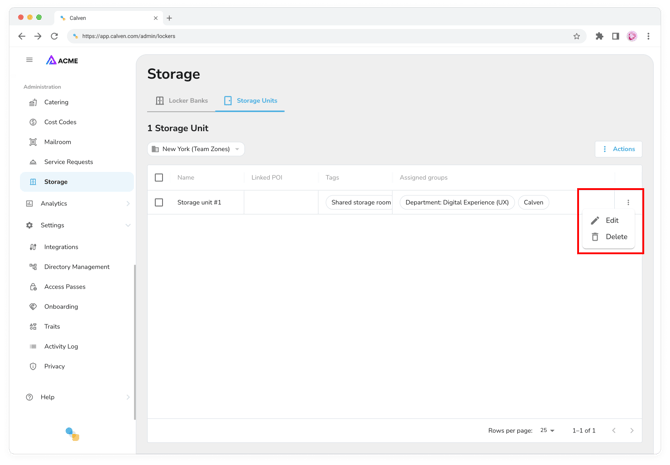
After you've created storage units, use the actions button for each unit to edit or delete it:
How to view storage assigned to you or your primary group
If you have been assigned a locker, or your primary group has been assigned a storage unit, you'll see it in your booking pass when your working location is set to the office that the locker is in: